
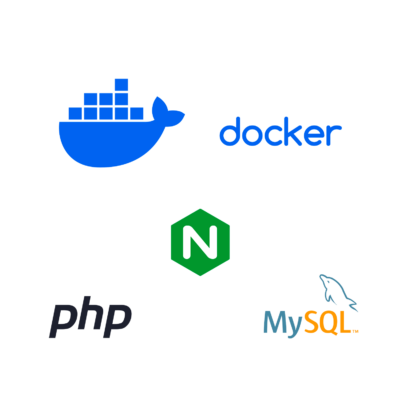
How to build a Docker environment. In this guide, we will create a Docker environment with Nginx, PHP, and MySQL. This setup is commonly used for web development and testing purposes.
Prerequisites
- Docker and Docker Compose installed on your machine.
- Basic knowledge of Docker and Docker Compose.
Step-by-Step Guide
Step 1: Create the Project Directory
Create a new directory for your project:
mkdir my_docker_project
cd my_docker_project
Step 2: Set Up Docker Compose File
Create a docker-compose.yml file in your project directory. This file will define the services for Nginx, PHP, and MySQL.
version: '3.8'

services:
  nginx:
    image: nginx:latest
    ports:
      - "8080:80"
    volumes:
      - ./nginx/conf.d:/etc/nginx/conf.d
      - ./app:/var/www/html
    depends_on:
      - php

  php:
    image: php:7.4-fpm
    volumes:
      - ./app:/var/www/html

  mysql:
    image: mysql:5.7
    environment:
      MYSQL_ROOT_PASSWORD: rootpassword
      MYSQL_DATABASE: mydatabase
      MYSQL_USER: myuser
      MYSQL_PASSWORD: mypassword
    volumes:
      - db_data:/var/lib/mysql

volumes:
  db_data:
Step 3: Configure Nginx
Create a nginx directory and a conf.d subdirectory inside it:
mkdir -p nginx/conf.d Create a configuration file default.conf inside nginx/conf.d with the following content:
server {
    listen 80;
    server_name localhost;

    root /var/www/html;
    index index.php index.html;

    location / {
        try_files $uri $uri/ /index.php?$query_string;
    }

    location ~ \.php$ {
        include fastcgi_params;
        fastcgi_pass php:9000;
        fastcgi_param SCRIPT_FILENAME $document_root$fastcgi_script_name;
        fastcgi_index index.php;
    }

    location ~ /\.ht {
        deny all;
    }
}
Step 4: Create a PHP File
Create an app directory in your project root and add an index.php file inside it:
mkdir app Create index.php in the app directory:
<?php
phpinfo();
Step 5: Build and Run the Docker Containers
Navigate to your project directory and run the following command to build and start the containers:
docker-compose up -d
This command will download the necessary images, create containers, and start them in the background.
Step 6: Access Your Application
Open your web browser and navigate to http://localhost:8080. You should see the PHP information page, confirming that Nginx and PHP are working together.
Managing the Containers
To stop the containers:
docker-compose downTo rebuild the containers (if you make changes to the Dockerfiles or the configuration):
docker-compose up -d --buildAdditional Configuration
You can extend this setup by adding more configuration files, scripts, or adjusting the docker-compose.yml file to fit your specific needs.
Conclusion
You have now set up a basic Docker environment with Nginx, PHP, and MySQL. This setup is ideal for local development and can be extended further based on your project requirements.
For more details and advanced configurations, refer to the official Docker and Docker Compose documentation: